Getting Started with Principal Task
The first few minutes in a new app set the tone for everything that follows. This article gets you from sign-in to your first task quickly — so you can start building the habit that makes Principal Task work. Account creation is handled during initial app setup and is not covered here.
Signing In
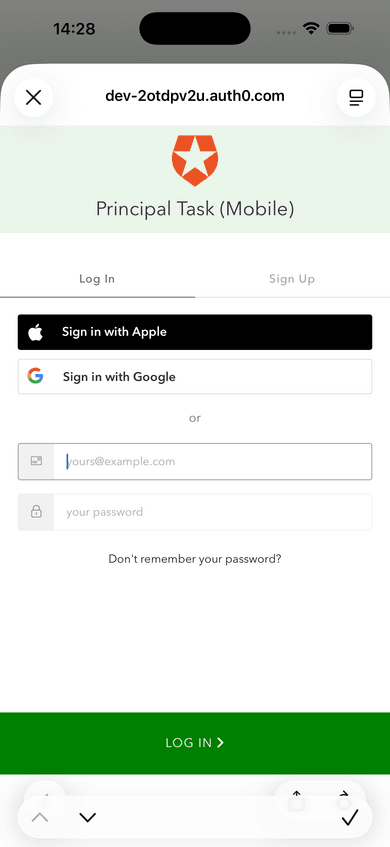
The sign-in screen is the same on web and mobile — an Auth0-hosted login page. Enter your email address in the Email address field and your password in the Password field, then click Continue.
Two additional sign-in options are available: Continue with Google and Continue with Apple. Both are available on web and mobile. If you have forgotten your password, click Reset password.
Understanding the Main View
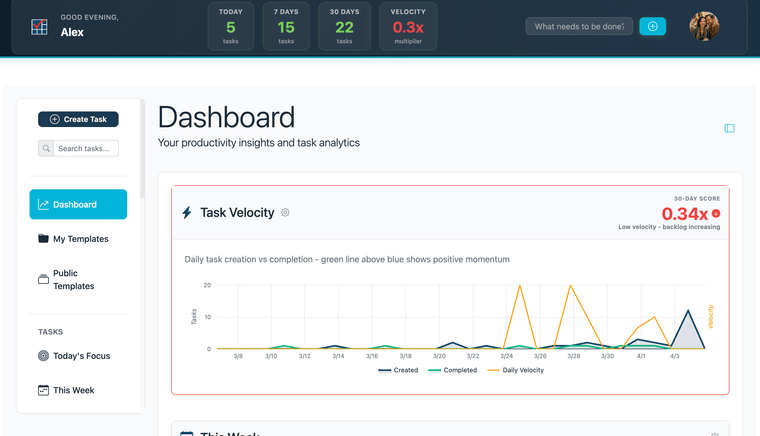
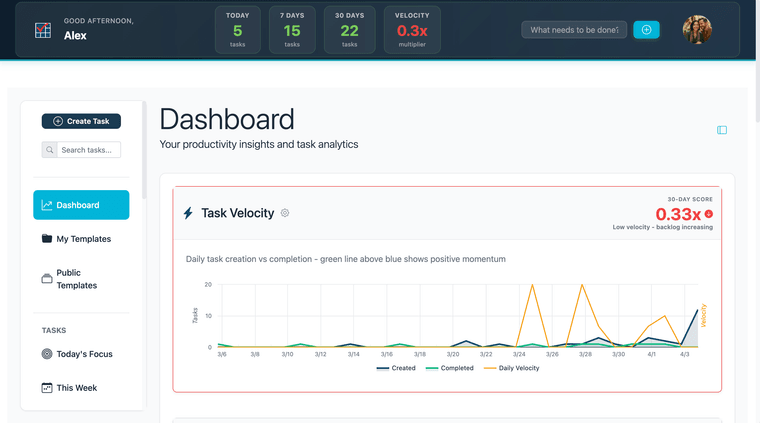
After signing in on web, you land on the Dashboard — a summary of your task activity and productivity trends. For a full breakdown of what the Dashboard shows and how to read it, see Reading Your Dashboard. A dark header bar runs across the top of every screen. It shows your greeting alongside four stat cards: Today, 7 Days, 30 Days, and Velocity. A What needs to be done? quick-add field sits in the header as well.
The left sidebar gives you full navigation. At the top is the + Create Task button and a Search tasks... field. Below that are links to Dashboard, My Templates, and Public Templates. The Tasks section contains Today's Focus, This Week, and other focused views. Collapsible Folders and Contexts sections at the bottom expand to show your organizational structure.
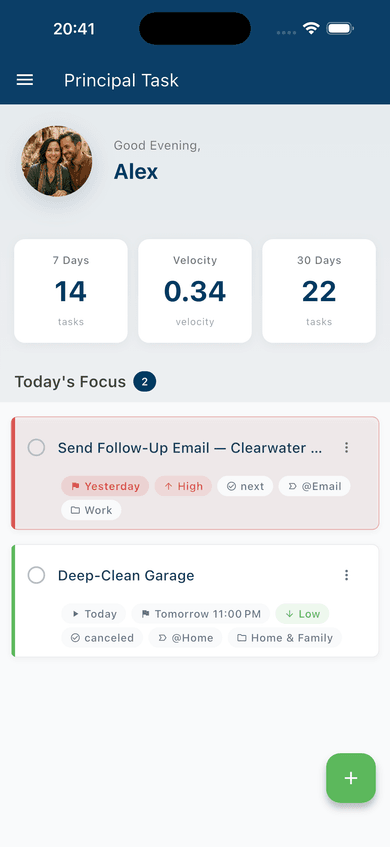
On mobile: Signing in takes you to the home screen, which shows your greeting, three stat tiles — 7 Days, Velocity, and 30 Days — and your Today's Focus task list. Tap the menu icon in the top-left corner to open the drawer navigation.
Your Task Velocity Score
Your Task Velocity score appears as the Velocity stat card in the header bar on web — visible on every screen. On mobile, it is one of the three stat tiles on the home screen. The score is expressed as a multiplier, such as 0.3x or 1.2x.
For a full explanation of what the score measures and how it is calculated, see Task Velocity: Your Productivity Pulse.
Creating Your First Task
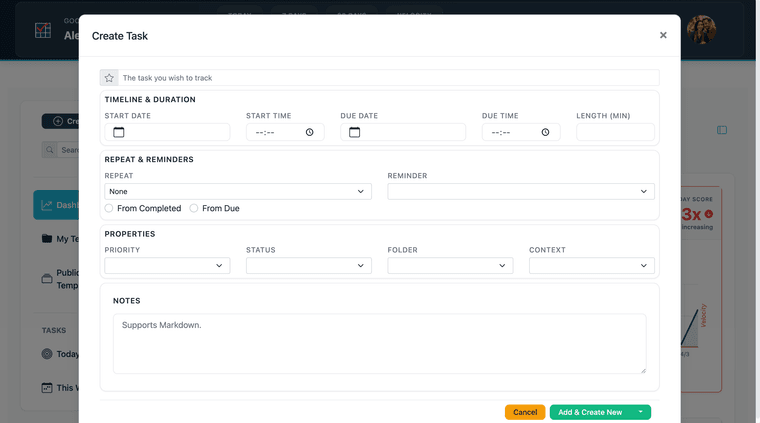
On web, click + Create Task in the left sidebar. The Create Task modal opens. Type your task title in the title field at the top of the modal. All other fields are optional at this stage. Click Add & Create New to save and immediately start a second task, or click the dropdown arrow on that button and select Add & Close to save and return to your task list.
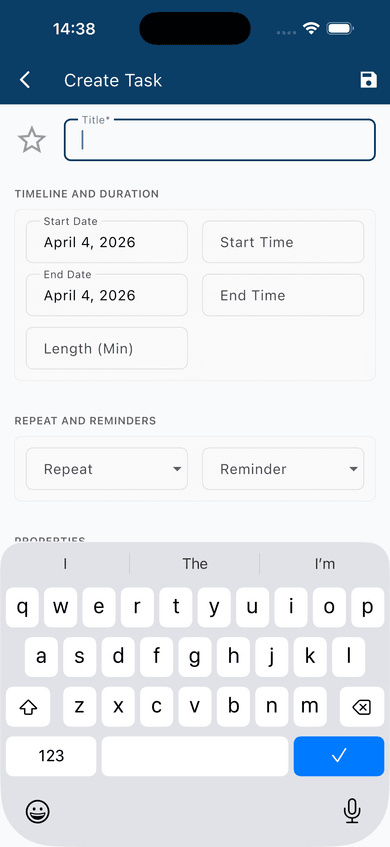
On mobile: Tap the green + button in the bottom-right corner. The Create Task screen opens. Type your task title in the Title field, then tap the save icon to save.
What to Do Next
Once your first task is in, you have everything you need to keep going. Adding and Organizing Your Tasks walks you through the full range of task fields — folders, contexts, priorities, statuses, stars, and subtasks — so every task has a place that means something in your system. When you're ready to understand how your productivity is trending, Task Velocity: Your Productivity Pulse explains the score you saw in the header. And if you want a visual layout of everything in progress, See Your Work with Kanban shows you how to switch views and work the board.