See Your Work with Kanban
Some work makes more sense as a board than a list. Kanban view in Principal Task arranges your tasks as cards in columns — grouped by status, priority, folder, or context — so you can see where everything stands and move it forward without opening each task individually. Available on both mobile and web.
Switching to Kanban View
Premium feature. Kanban view is available on paid plans. Free users see a premium upgrade prompt when they try to enable it.
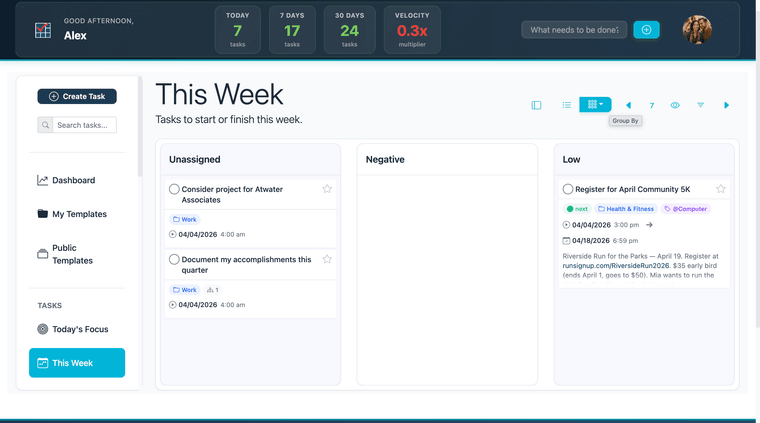
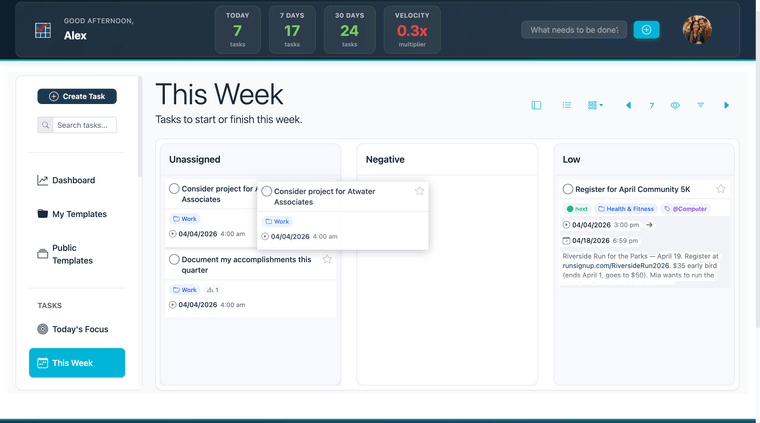
On web, the view-toggle control is in the header toolbar at the top-right of the task list area. Click the kanban icon — its tooltip reads Switch to Kanban View — to enable Kanban view. Click it again (Switch to List View) to return to the list. The setting persists across all task list views.
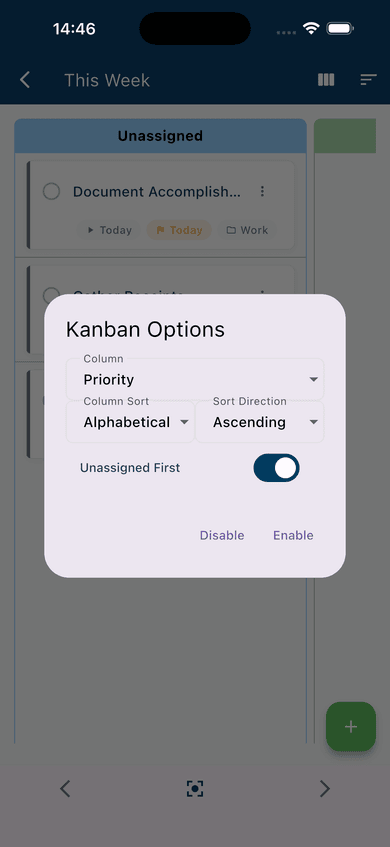
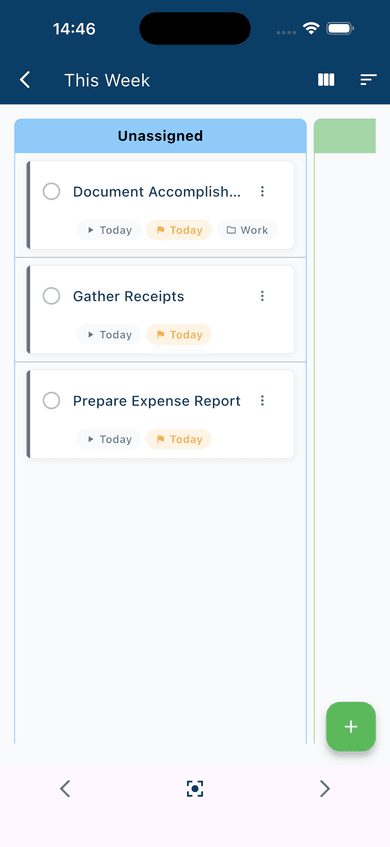
On mobile: From any task list screen, tap the kanban icon in the top-right corner of the app bar. The Kanban Options dialog opens — configure your settings and tap Enable to activate. Once enabled, the board shows the same column layout as web; tap a card to open it or drag cards between columns to update the underlying task field.
Choosing a Grouping
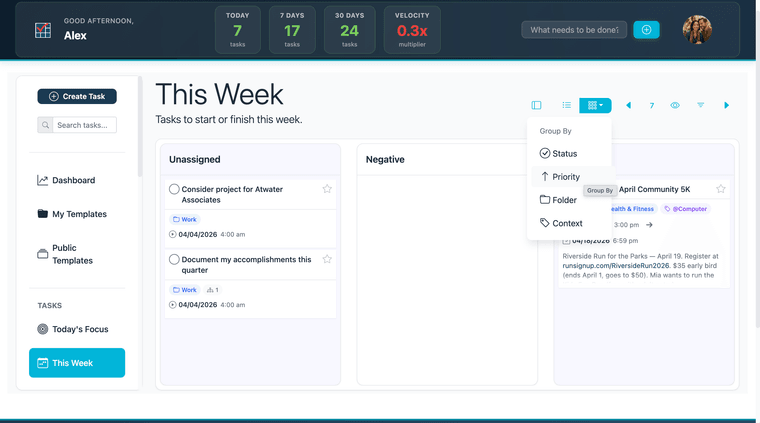
Columns are generated by grouping all your tasks by a single field. Four groupings are available on both web and mobile: Status, Priority, Folder, and Context. Tasks without a value for the active grouping field appear in an Unassigned column.
On web, use the Group By dropdown in the toolbar (next to the kanban icon) to choose or change the grouping.
On mobile: Open the Kanban Options dialog by tapping the kanban icon in the app bar. Select a grouping from the Column dropdown. Additional options let you control how columns are sorted (Column Sort: Alphabetical or by defined order; Sort Direction: Ascending or Descending) and whether the Unassigned column appears first or last (Unassigned First toggle). Tap Enable to apply.
Moving Tasks Between Columns
Drag a task card from one column and drop it onto another. When you drop it, the underlying task field updates automatically to match the destination column. If you are grouping by Status and drag a task into the Next Action column, its status becomes Next Action. Moving a task to the Unassigned column clears the field. The change saves immediately.
This is the same on both web and mobile — both platforms use drag-and-drop.
Filtering in Kanban View
The same filter controls available in list view are available in Kanban view. On web, the filter panel can be opened with the filter icon in the toolbar — it works the same whether you are in list or Kanban mode. Filtering in Kanban view narrows which task cards are displayed across all columns without changing the column grouping.
On mobile, the filter icon in the app bar operates the same way in both views.