Break Any Project Down with Subtasks
Some tasks aren't really tasks — they're projects wearing a task's clothes. Subtasks let you break them down into the actual steps without losing the connection to the bigger picture. In Principal Task, nesting is unlimited on both mobile and web, so the structure can go as deep as your work requires.
Adding a Subtask
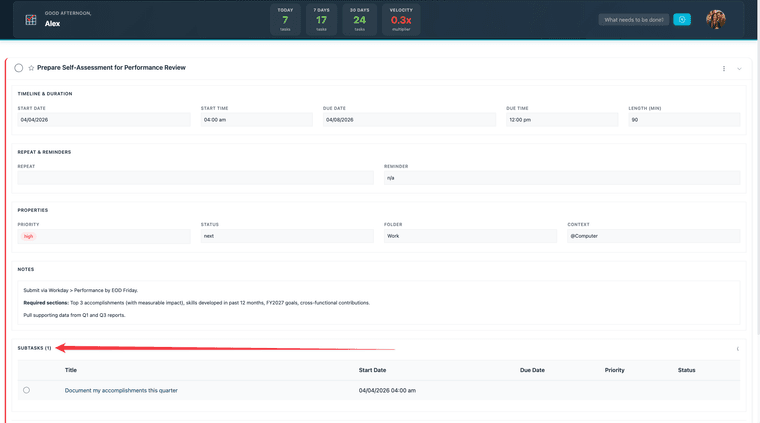
On web, open any task to view its detail panel. In the panel header you'll find an Add Subtask button — click it to open the task creation modal with the parent task already set. Fill in the subtask title and any other fields, then save.
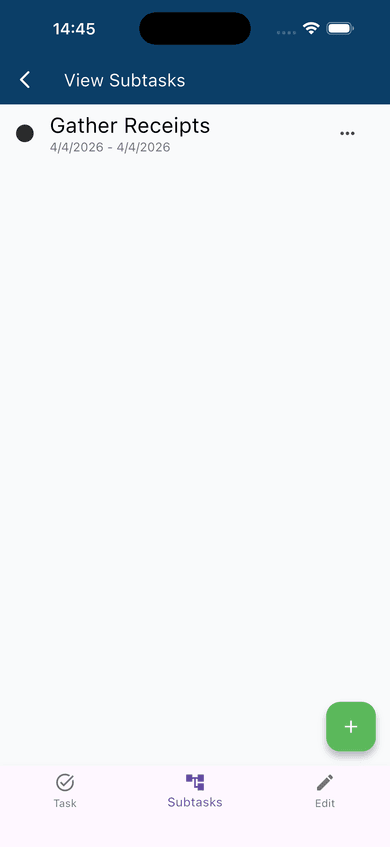
On mobile: Open a task to reach its detail screen. Tap the Subtasks tab, then tap the + button. The full task editor opens with the title bar showing Create Subtask — complete the form and save to attach it to the parent.
Nesting Subtasks
Subtasks can themselves have subtasks. The process is identical: open a subtask, then use the same Add Subtask control (web) or Subtasks tab and + button (mobile) to add a child beneath it. There is no depth limit — you can nest as many levels as your project requires.
Completing Subtasks
Complete a subtask the same way you complete any task — tap or click its completion control. Each subtask completion is recorded independently and contributes to your Task Velocity score just like any other task.
Completing all subtasks does not automatically complete the parent task. The parent remains open until you mark it complete separately. This is intentional — the parent task often represents the overall deliverable, and whether it's done is your judgment to make, not something the app decides for you.
When to Use Subtasks
Subtasks are most useful when a single task title isn't enough to describe the actual work.
Multi-step deliverables. A task called "Prepare quarterly report" might look manageable until you realize it involves pulling data from three sources, writing three sections, and getting sign-off from two people. Breaking it into subtasks makes the actual steps visible — and makes each step completable, which keeps your velocity moving.
Recurring checklists. Some work follows the same sequence every time — a client onboarding, a product launch, a weekly review. Building the checklist once as subtasks gives you a consistent starting point. For work that repeats across multiple tasks, see Task Templates: Build Once, Use Every Time — templates let you save and reuse an entire subtask structure without rebuilding it each time.
Projects with handoffs or waiting states. When some subtasks can't start until others are done, having them as separate items makes the dependency visible. You can mark completed steps done and leave the waiting ones open — an accurate picture of where the work actually stands.