Task Templates: Build Once, Use Every Time
The work that repeats is the work worth systematizing. Whether it's a weekly review, a client onboarding, or a travel checklist — if you've built it once, you shouldn't have to build it again. Templates in Principal Task preserve your complete task structure, including every subtask at every level of nesting, and let you spin up that structure in seconds on mobile and web.
Creating a Template
Premium feature. Creating templates requires a paid plan on both web and mobile. Free users can browse and use templates from the Public Templates gallery, but cannot create or save their own.
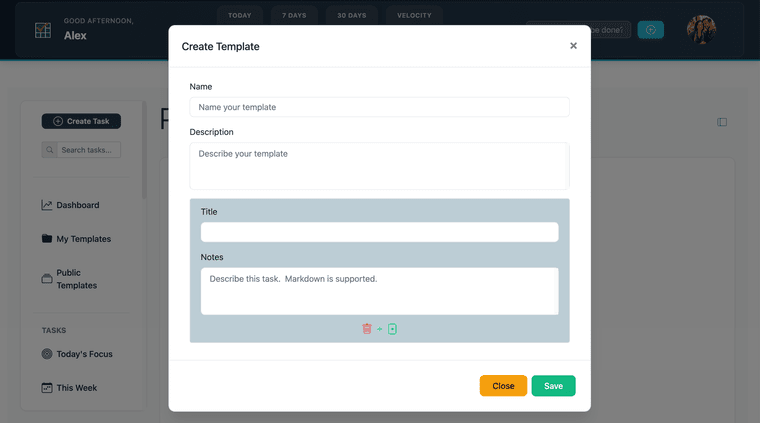
On web, navigate to My Templates in the sidebar. Click Create New Template to open the template editor. Give the template a name and an optional description, then add tasks one by one — each task can have a title and the same properties as a regular task. Add subtasks by clicking the nesting control within each task row. Save when the structure is complete.
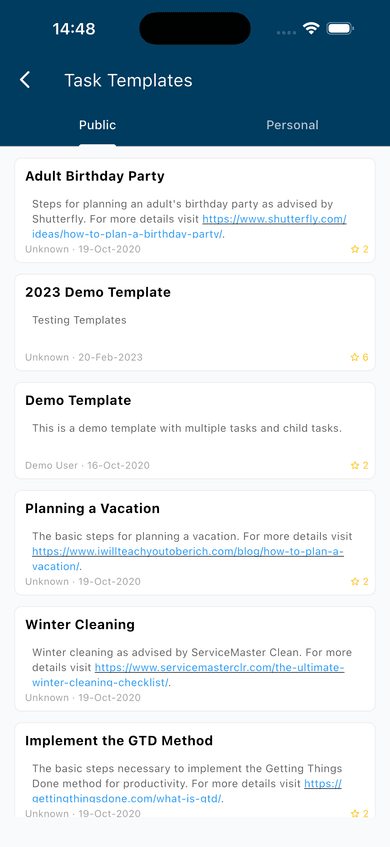
On mobile: Open the drawer and tap View Templates. Select the Personal tab, then tap the + button. The template editor opens — add a name, then build your task list from there.
Using a Template
On web, navigate to My Templates in the sidebar. Click any template name to open the preview. Review the task list, then click Instantiate to create all the tasks. The full task structure — including every subtask at every level of nesting — is created at once.
On mobile, open the drawer and tap View Templates. Browse your personal templates on the Personal tab, or explore shared templates on the Public tab. Tap a template to preview it, then tap Use Template to confirm. Your tasks are created immediately.
Editing and Managing Templates
On web, navigate to My Templates and click a template name to open it. Use the edit icon to modify the template's name, description, or task list. Use the delete icon to remove it permanently.
On mobile, go to View Templates — Personal tab. Tap any template to open it. From the template detail screen you can edit its contents or delete it using the controls in the header.
What Makes a Good Template
Templates pay off most when the work is both repeating and structured.
Workflows with consistent steps. Client onboarding, project kickoffs, content production cycles — any process that follows the same sequence every time is a candidate. Build it once, and every future instance starts in the right shape instead of being improvised from memory.
Checklists that need to be done correctly. When the steps matter — not just what gets done, but in what order and by whom — a template enforces the structure without requiring anyone to remember it. Travel prep, equipment setup, compliance reviews.
Recurring projects with complex subtask trees. The deeper and more specific your subtask structure, the more value a template delivers. A flat five-item template saves a few minutes. A template with three levels of subtasks, pre-assigned priorities, and well-named steps can save significant setup time on every pass — and it ensures nothing gets missed.