Find Any Task in Seconds with Filters
A large task list is only a problem if you can't navigate it. Filters in Principal Task let you slice your work any way you need — by folder, context, priority, status, star, date, or combinations of all of the above. The result is always a focused view of exactly what's relevant right now.
Using Built-In Filters
On web, the task list includes a filter bar with three inline dropdowns: Priority, Status, and Folder. These let you narrow the list without opening a separate panel. For more advanced filtering, click the filter icon in the task list toolbar to open the full filter dialog.
The full filter dialog offers quick-access views at the top — Get Organized and Today's Focus — as well as a custom filter builder for precise queries.
You can also filter directly from the sidebar: click any folder name in the Folders section or any context name in the Contexts section to see only the tasks assigned to that folder or context. This is the fastest way to focus on a single project or situation without touching the filter dialog.
On mobile, open the drawer and tap any folder or context to see only the tasks assigned to it. The drawer also provides pre-filtered views — Today's Focus, This Week, Overdue, and Get Organized — and tapping a stat tile on the Home screen (7 Days, 30 Days) opens a date-filtered task list.
Using Custom Filters
Web only. Custom filters are not available on mobile. On mobile, use the predefined filtered views in the drawer.
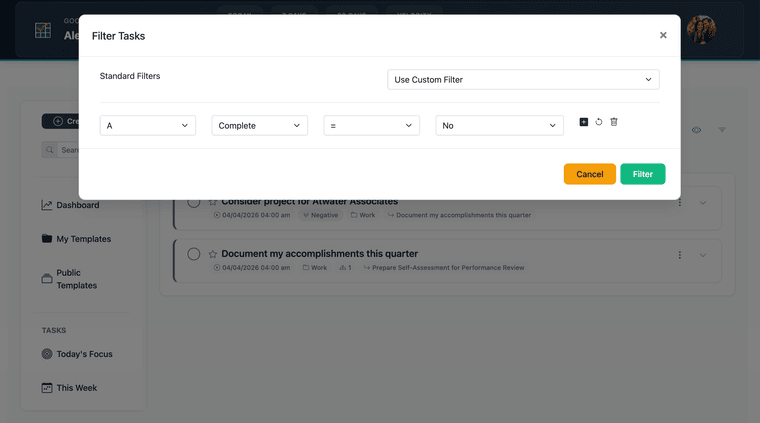
On web, click the filter icon in the task list toolbar to open the filter dialog, then use the custom filter builder to define conditions. Each condition specifies a field, an operator, and a value. Available fields include Complete, Context, Folder, Length, Notes, Priority, Star, Status, Title, Due date, Start date, Created date, and Completed date.
Every condition also belongs to a Group, selected from the dropdown at the start of each row. The Group controls how conditions relate to each other:
- Same group → AND. All conditions in the group must match. For example, Group A with Priority = High and Folder = Work returns only high-priority tasks that are also in your Work folder.
- Different groups → OR. A task matching any group's conditions will appear. For example, Group A with Priority = Top and Group B with Star = Yes returns tasks that are Top priority or starred (or both).
Combine both to build precise queries: Group A requiring Priority = High AND Folder = Work, with Group B requiring Star = Yes AND Status = Next Action, returns tasks that match either set of conditions. Set the conditions and group assignments you need, then click Filter to apply.
Filters and Kanban View
On web, filters applied in the task list carry over when you switch to Kanban view — both views operate on the same task data. Apply a filter in list view, switch to Kanban, and the board shows only the matching tasks.
Clearing Filters
On web, open the filter dialog and click Cancel to dismiss without changing filters, or reset the filter conditions to clear them. Switching to the Get Organized or Today's Focus quick filter replaces any custom filter currently active.
On mobile, navigate to a different view from the drawer to leave a filtered view and return to the full task list.