Richer Notes with Markdown
Task titles capture what needs to be done. Notes are where you capture everything else — context, reference material, links, checklists, thinking in progress. Principal Task supports Markdown in task notes, which means your notes can have structure, not just text. If you've never used Markdown before, this article gets you started. If you have, it confirms what's available.
Opening the Notes Field
On web, open any task to view its detail panel. The Notes field appears in the body of the panel below the task properties. Click the field to start typing. Markdown is rendered automatically as you view the note — what you write in Markdown syntax is displayed as formatted output.
On mobile, open a task and scroll to the NOTES section at the bottom of the task editor. Tap the field to begin editing. The note renders formatted output when you're viewing the task outside of edit mode.
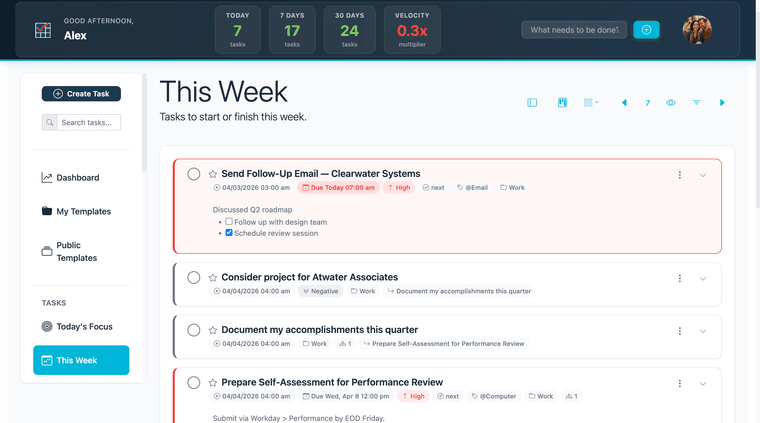
Markdown Basics
You write Markdown as plain text using simple punctuation. Principal Task renders the following elements:
Bold — wrap text in double asterisks: **bold text** renders as bold text.
Italic — wrap text in single asterisks: *italic text* renders as italic text.
Headings — start a line with # for a large heading, ## for a medium heading. Use headings to organize longer notes into sections.
Bullet lists — start each line with - to create an unordered list:
- First item
- Second item
Numbered lists — start each line with 1. (the number increments automatically):
1. First step
2. Second step
Checkboxes — - [ ] item renders as an unchecked box; - [x] item renders as checked. Useful for manual checklists within a note.
Links — [label](url) renders as a clickable link.
Inline code — wrap text in backticks: `code` renders in a monospace style.
Horizontal rule — three dashes on their own line (---) renders as a dividing line.
Writing a Useful Task Note
Here's what a well-structured task note looks like in practice. The task is titled "Proposal: Henderson account." The note might read:
## Context
Henderson reached out via email on 3/28. Budget: $15K. Decision by 4/15.

## Steps
- [ ] Pull scope template from Dropbox
- [ ] Draft executive summary
- [ ] Get pricing sign-off from Sarah
- [ ] Send draft to Henderson for review

## Reference
[Budget guidelines](https://internal.link/budgets) | [Previous proposal](https://docs.link/proposal-v1)
The heading organizes the note into scannable sections. The checkboxes track completion without creating separate tasks. The reference links keep source material one tap away.
Plain Text vs. Markdown
The notes field supports Markdown automatically — there's no toggle or mode to enable. If you write plain text, it displays as plain text. If you use Markdown syntax, it renders as formatted output. Both approaches are valid; the formatting is just there when you want it.
Going Further
Once you're writing notes in Markdown, the next step is using structure deliberately. Making Markdown Work for You covers how to use notes as meeting records, reference documents, and persistent checklists — making each task note something you'd actually want to read back.