Stay on Track with Dates and Reminders
A task without a date is a task with an implicit deadline of never. Dates and reminders in Principal Task close the gap between capturing work and actually doing it on time — with notifications that meet you wherever you are, including Pushover for people who want their reminders to cut through the noise.
Setting a Due Date
On web, open a task and find the Due Date and Due Time fields in the task properties. Click either field to open the date/time picker and select a value. You can set a date only, a time only, or both.
On mobile, open a task and scroll to the TIMELINE AND DURATION section. The date field is labeled End Date and the time field is labeled End Time. Tap either to open the picker.
Note: The underlying data field is the same across both platforms — the mobile app labels it End Date / End Time while the web app uses Due Date / Due Time.
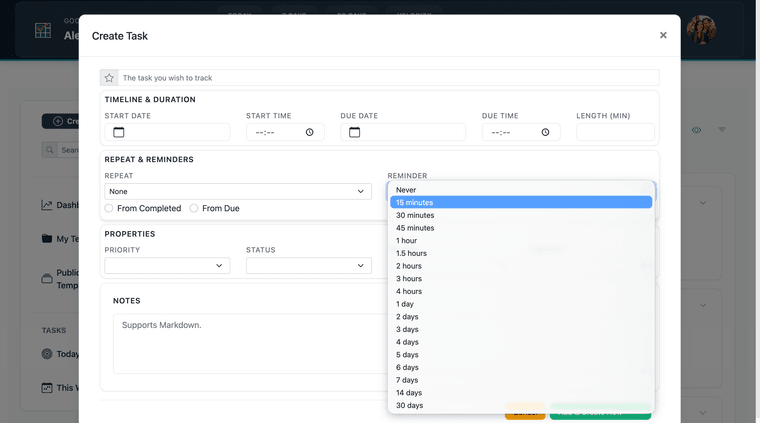
Setting a Reminder
The Reminder field appears in the task editor on both web (in Properties) and mobile (in the REPEAT AND REMINDERS section). It sets when a notification fires relative to the task's due date and time.
Available options:
- At Time — fires exactly when the task is due
- 5 Minutes Before
- 15 Minutes Before
- 30 Minutes Before
- 1 Hour Before
No reminder is set by default. Reminders require a due date and time to be set on the task.
In-App Notifications
On mobile, reminders are delivered as push notifications. You'll need to grant notification permissions to Principal Task when prompted. Once granted, reminders arrive as standard system notifications even when the app is in the background.
Pushover Integration
Pushover is a third-party notification service that delivers high-priority push notifications to iOS and Android, bypassing focus modes and do-not-disturb settings. If you rely on your task reminders to arrive without fail — regardless of your phone's notification settings — Pushover is worth the one-time purchase.
To connect Principal Task to Pushover, navigate to your notification settings in the web app and enter your Pushover User Key in the field provided. Your user key is found on your Pushover account page at pushover.net. You can also configure whether Principal Task should observe Pushover's Quiet Hours setting — enabling this means reminders will be held during your designated quiet period rather than firing immediately.
Pushover itself requires a one-time purchase from pushover.net. The integration with Principal Task is available on all plans.
How Dates Affect Task Velocity
Due dates do not directly change how Task Velocity is calculated. Velocity measures the ratio of completions to creations over the past 30 days, regardless of whether individual tasks have dates. What dates do affect is whether tasks stay visible. A task with no due date doesn't appear in Today's Focus or This Week, which makes it easier to defer indefinitely. Over time, undated tasks that never get completed pull the velocity score down by sitting open in the denominator. Setting dates keeps work visible, which tends to keep completions flowing. For the full picture, see Task Velocity: Your Productivity Pulse.