Organize by Project and Area with Folders
A task without a home is a task you'll lose track of. Folders in Principal Task give every piece of work a place — organized the way your brain actually works, not the way a template tells you to. Use groups to keep related folders together so your sidebar stays readable as your work grows.
Creating a Folder
On web, find the Folders section in the sidebar. Click the + icon next to the section heading to create a new folder. Enter a name and save.
On mobile, open the drawer and tap View Folders. Tap the + button to open the folder editor. Enter a name and save.
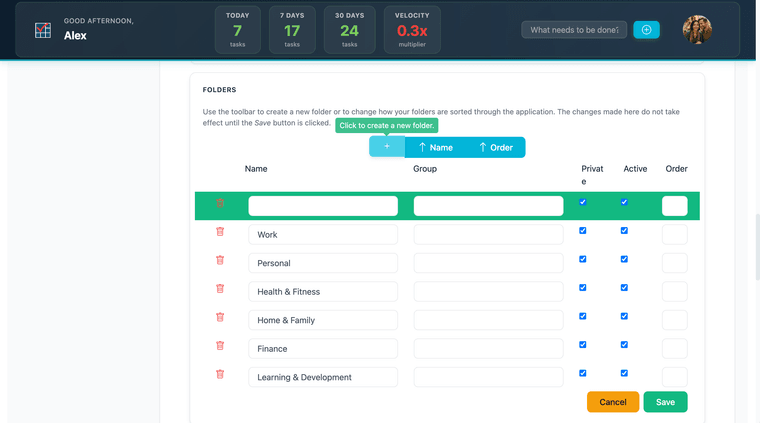
Grouping Folders
Folders can be assigned a Group — a label that causes folders with the same group value to appear together in folder lists. This is how you keep a flat list readable when you have many folders: folders in the same group stay adjacent rather than scattered.
On web, set the Group field when creating or editing a folder in the folder management panel. On mobile, the Group field appears in the folder editor when you create or edit a folder.
Assigning Tasks to Folders
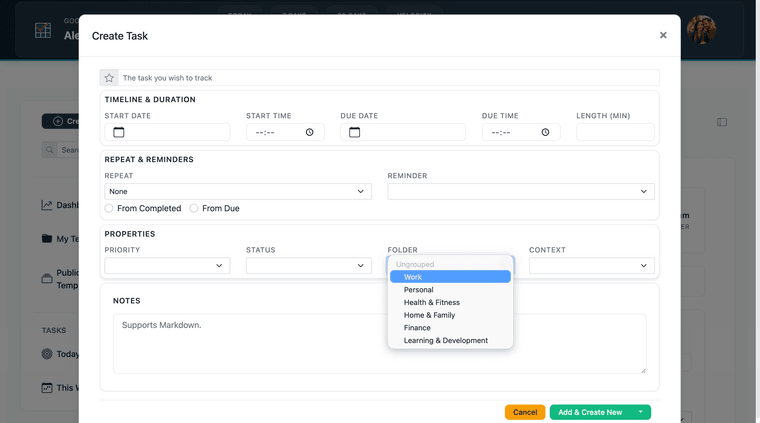
On web, open a task and find the Folder field in the task properties. Click the dropdown to select a folder. A task can belong to one folder at a time.
On mobile, open the task editor and scroll to the PROPERTIES section. Tap the Folder field to open the folder picker and select a folder.
Viewing Tasks by Folder
On web, click any folder name in the Folders sidebar section to see only tasks in that folder.
On mobile, open the drawer and tap View Folders. Tap a folder name to open a filtered list of its tasks. Kanban view is available within folder views — tap the Kanban icon in the task list app bar to switch.
A Simple Folder Structure to Start With
The most useful folder structure reflects how you actually think about your work, not how a productivity book says to organize it. A simple starting point:
- Inbox — default destination for anything captured quickly, before you decide where it belongs
- Work — professional tasks, client work, job responsibilities
- Personal — everything outside of work
- Finance — bills, tax items, banking tasks
- Family — tasks tied to household, kids, shared responsibilities
This gives every task a home without creating so many folders that placement itself becomes a decision. Start here, then add folders when you consistently find yourself wanting a separate category that doesn't fit.
For the principles behind building a system that holds up over time, see Building a System That Actually Works.