Do the Right Work at the Right Time
Not every task can be done anywhere. Some need a computer. Some need a phone call. Some can only happen when you're at a specific location or have a focused block of time. Contexts in Principal Task let you tag tasks by the condition under which they can be done — so when you have thirty minutes at your desk, you can filter to exactly what's actionable right now instead of scrolling past everything that isn't.
What a Context Is
A context is a label that answers the question: "under what condition can this task actually be done?" It might be a place, a tool, an energy level, or a circumstance. The point is that some tasks are only doable in specific situations — and tagging them with that condition lets you filter to what's genuinely actionable right now.
A few practical examples:
- @computer — tasks that require being at a desk with full access to files and applications
- @phone — calls to make, voicemails to return
- @errands — things to pick up or drop off when you're out
- @focus — deep-work tasks that require uninterrupted concentration
- @waiting — items blocked on someone else, so you can review them without acting
Creating a Context
On web, find the Contexts section in the sidebar. Click the + icon next to the section heading to create a new context. Enter a name and save. Context names are global — they're available across all your tasks.
On mobile, open the drawer and tap View Contexts. Tap the + button to open the context editor. Enter a name and save.
Assigning a Context to a Task
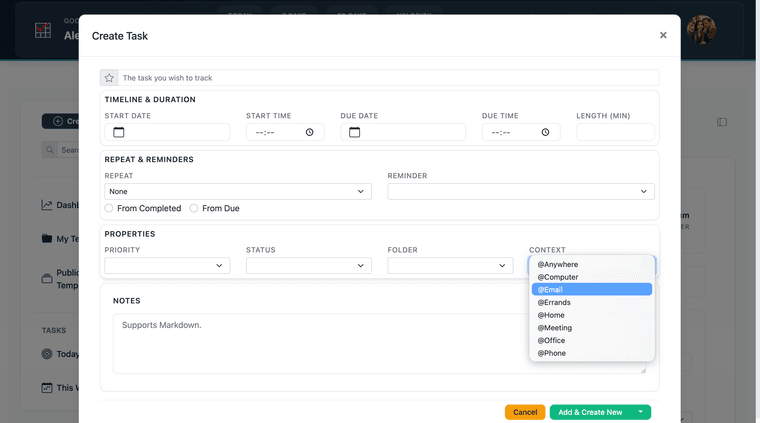
On web, open a task and find the Context field in the task properties. Click the dropdown to select one of your contexts. A task can have one context at a time.
On mobile, open the task editor and scroll to the PROPERTIES section. Tap the Context field to open the context picker and select a context.
Filtering by Context
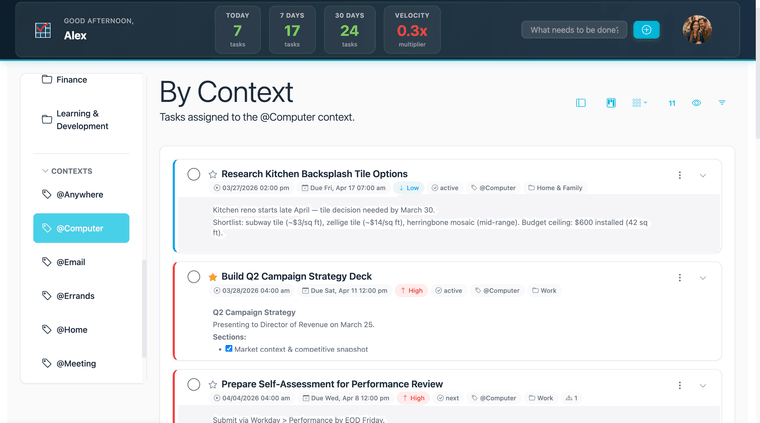
On web, click any context name in the Contexts sidebar section to see only tasks assigned to that context. You can also apply a context filter using the custom filter builder in the filter dialog.
On mobile, open the drawer and tap View Contexts. Tap any context to open a filtered task list showing only tasks with that context assigned.
The practical value is focus: when you sit down at your desk, filter to @computer and work only from that list. When you have fifteen minutes between meetings, filter to @phone and clear the calls. You stop scanning the whole list and start working from exactly what's possible right now.
Contexts That Work
Here are seven context labels that hold up in practice, with a note on when each earns its place:
- @computer — anything requiring your full desktop environment: complex writing, software work, spreadsheets, file management
- @phone — calls, voicemails, short conversations that don't need a screen
- @errands — physical stops: post office, store, dry cleaner. Filter to this before leaving the house
- @focus — tasks that require a block of uninterrupted concentration. Useful for separating "do when you have thirty minutes" from "do when you have two hours"
- @low-energy — simple, mechanical tasks for when you're not at your peak: filing, form responses, expense reports
- @waiting — tasks blocked on someone else. Review weekly so nothing slips through
- @agenda — items to raise with a specific person at your next conversation. One context per recurring relationship works well
The best contexts are the ones that reflect real constraints in your life — not a theoretical system. Start with two or three and add more only when you notice yourself wanting them. For the broader framework, see Building a System That Actually Works.