Connect Your AI Assistant
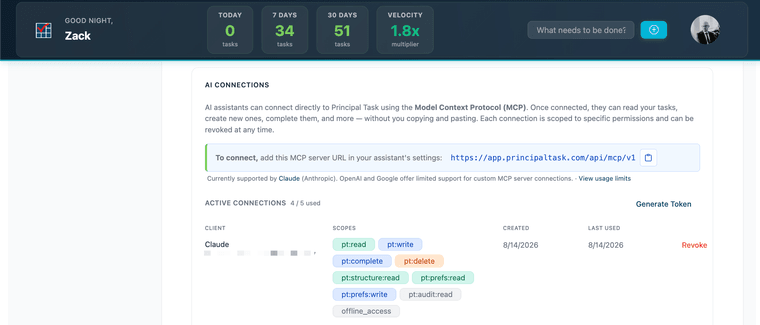
AI Connections lets Claude — and, with more manual setup, other MCP-compatible tools — read and act on your real task data directly in conversation: adding tasks, triaging your inbox, marking things done, running a weekly review. Every connection is scoped to exactly what you allow, every write is logged, and every write can be undone. New connections are set up from the web app; once connected, you can view and manage them from mobile too. Requires Principal Task 2.0.1 or later.
What AI Connections Does
Principal Task speaks MCP (Model Context Protocol), an open standard that lets an AI assistant call an app's features directly instead of you copying and pasting between windows. Once connected, your assistant reads and writes the same data your web and mobile apps use — nothing separate, nothing synced after the fact.
You'll find it at Profile → Integrations. Connecting is free on every plan. A few things — how many connections you can run at once, how much an assistant can do in a single request, how far back your activity history goes — scale with your plan. See Free vs. Premium Access below.
What Your Assistant Can Actually Do
Add tasks — a single task, parsed from plain language including shorthand for folder, context, and priority, or several at once.
Reorganize — move tasks between folders and contexts, push something to Someday, push out a start or due date, or split one task into several.
Answer questions — what's due, what's overdue, what's stalled, a weekly-review summary, the velocity trend. All read-only; nothing changes.
Update and complete — change any field, or mark a task done. A recurring task correctly advances to its next occurrence, the same as completing it in the app.
Look up your setup — folders, contexts, the priority and status options — so it uses your real labels instead of guessing.
It can't create, rename, or archive folders or contexts on its own — only read them. And deleting a task always requires the assistant to look up and confirm the specific task; it can never act on a natural-language sweep like "delete all my overdue tasks." That's deliberate, not a current limitation — it's what keeps a stray instruction buried in a document or message from ever triggering a deletion on its own.
Connecting to Claude
Claude is the most direct path — Anthropic created MCP, and Claude's connector setup is a few clicks with no config files involved. It also works the same everywhere: claude.ai, Claude Desktop, and Claude's mobile apps all share the same connectors, since they're tied to your Claude account rather than any one app.
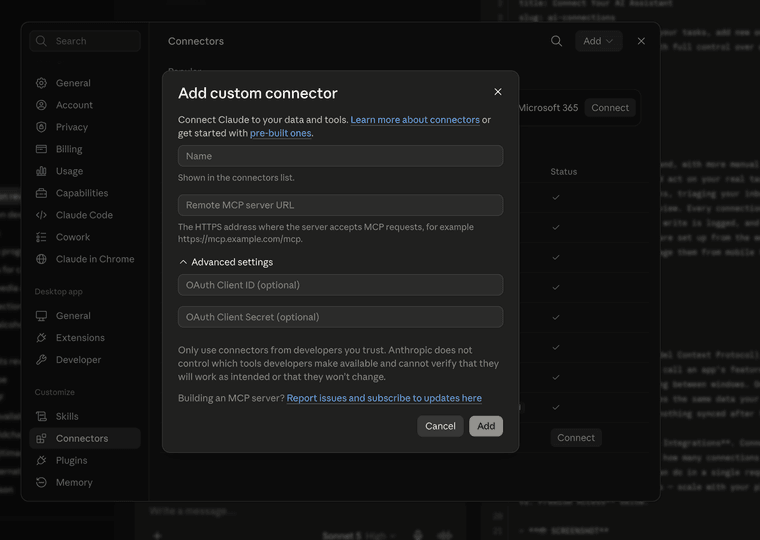
- In Claude, go to Settings → Connectors and select Add custom connector.
- Enter the server URL:
https://app.principaltask.com/api/mcp/v1, then select Add. - Claude opens a browser window to Principal Task. Log in if you're not already, then choose which scopes to grant — read tasks, create and update tasks, delete tasks — and confirm.
- Back in Claude, turn the connector on for a conversation from the + button → Connectors.
You don't need a paid Claude plan to try this — Claude's free tier allows one custom connector.
Connecting Cursor
MCP is an open standard, so Cursor can connect too — it just takes a bit more setup, since there's no one-click flow for a server that isn't in Cursor's own directory. A Personal Access Token is usually the more reliable route here; it's a paid feature (see Free vs. Premium Access below), but it sidesteps some of the OAuth variability between Cursor versions. OAuth works too, if you're on a free plan or would rather not use a token.
With a Personal Access Token (recommended):
In Principal Task, go to Profile → Integrations and generate a Personal Access Token.
Add Principal Task to
.cursor/mcp.json(project-level) or~/.cursor/mcp.json(global):{ "mcpServers": { "principal-task": { "url": "https://app.principaltask.com/api/mcp/v1", "headers": { "Authorization": "Bearer YOUR_PERSONAL_ACCESS_TOKEN" } } } }Open Cursor Settings → Tools & MCP and confirm Principal Task shows as connected.
With OAuth instead: use the same mcp.json entry without the headers block — just the url. Cursor will open a browser window to Principal Task the first time it needs to authenticate, the same consent screen as the Claude walkthrough above.
Other Tools
Principal Task also publishes a standard OpenAPI specification at https://app.principaltask.com/api/mcp/v1/openapi.json, for tools that work from that format instead of MCP directly — including ChatGPT's Actions. A guided walkthrough for ChatGPT isn't ready yet, but the specification is live now for anyone who wants to wire it up.
Any other MCP-compatible client should be able to connect using the same server URL as Claude and Cursor above: https://app.principaltask.com/api/mcp/v1. Principal Task publishes standard discovery documents, so most clients can configure themselves from that URL alone.
Undo: Your Safety Net
Every read and write your assistant makes shows up in the Activity Log, right below your connections, on both web and mobile. Writes can be undone individually, or as a whole batch if one request created or changed several tasks at once.
If you've changed the same task elsewhere since the assistant touched it, undo won't silently overwrite your newer change — it flags the conflict instead. Undoing a completed recurring task restores the original and removes the next occurrence that got auto-created, together, so you're not left with a duplicate.
Free vs. Premium Access
Premium feature. Connecting an assistant is free on every plan. These limits scale with your plan:
| Free | Paid | |
|---|---|---|
| Concurrent connections | 2 | 5 |
| Personal Access Tokens | Not available | Available |
| Tasks per batch request (create/update) | 10 | 25 |
| Tasks per batch request (delete) | 3 | 10 |
| Reads per minute, per connection | 50 | 200 |
| Writes per minute, per connection | 10 | 50 |
| Activity Log / undo history | 30 days | 90 days |
Getting Notified
You'll get a push notification and an email whenever a new AI Connection is created, with a direct link to revoke it if it wasn't you. Batch writes — an assistant adding a dozen tasks at once, say — are bundled into one summary notification rather than one per task.